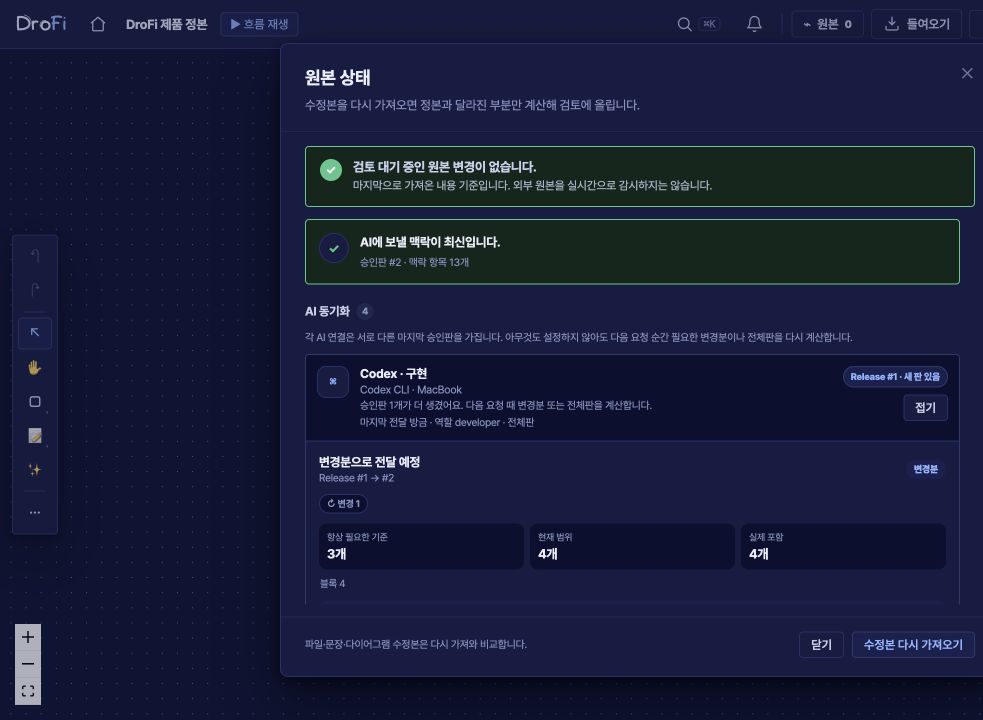
Does AI work update the map automatically?
Supported MCP connections can supply reported progress and submitted results. A received result is distinct from a completed human review. Automatic collection of all AI work or external file changes is not available; external file changes currently need to be imported again. Connections that keep work and the map updated without repeated importing are follow-up development.
Must the whole design be finished before starting work?
Review the overall flow, then refine the requirements and important decisions for what you want to make now. The design remains a reference for results and later changes, rather than a document used only before work. User-flow order and development order are different.
Which AI tools does it connect to?
Tools that support MCP connect directly. For tools that do not, you can copy the full context or a task prompt. The project source of truth does not live inside a single AI vendor.
Where is our data stored?
Projects live on DroFi's servers. When DroFi assembles AI context, it uses only the scope the team allowed and leaves marked material out from the start. It does not control someone manually copying material outside DroFi.
Can teammates use different AI tools?
That's the premise DroFi is built on. One person can use Claude, another Cursor, and another ChatGPT. Context delivered through a connection or copy is generated from the same project source, so the team does not have to standardize on a single execution tool.
Aren't CLAUDE.md, AGENTS.md and Cursor Rules enough?
You can keep using your AI tools’ instruction files and rules. DroFi helps when you want to manage project materials, decisions and submitted results across several AIs in one place. Review the background to send before each task and compare the results that come back. Work still runs in your connected AI tools; DroFi does not automatically collect every external conversation or file change.
Context windows keep growing. Why select at all?
Maximum window length and useful length on a particular task are not the same.
NoLiMa (ICML 2025) ↗ defines effective length as the longest context that retains 85% of short-context performance. In the
authors' updated table ↗, GPT-4.1 claims 1M tokens and measures 16K effective. The condition matters: this is
associative retrieval over narrative prose without lexical overlap. It does not say models cannot find a literal function name in code.
How many tokens does it save? Does it make AI more accurate?
We do not promise one savings percentage. In an internal measurement on Aug 21, 2026, same-depth blueprints with 60–120 blocks ranged from about 1.0× (no meaningful reduction) to roughly 21× versus full context, depending on how the blueprint was connected. On tiny, nearly empty blueprints, the task prompt was larger. We have not run an accuracy A/B yet. What we claim today is not “more accurate”; it is that teams can review what was sent and leave marked material out before context is assembled.
How is this different from Notion or Figma?
Notion pages and Figma files remain the source material people read. DroFi does not replace them; it links decisions and relationships into a blueprint people and AI can share. Persistent role context and task prompts are created separately from that blueprint.
Is it usable for non-developers?
Yes. You draw with blocks and arrows and answer the AI's questions in plain language. PMs and designers can pick a task and create a prompt with context for that task. If you're building something on your own, there's a separate
vibe coding track →.
How does no-export actually work?
Mark a document or block as no-export and it is left out when DroFi assembles AI context. The sent-block list can be reviewed later in Export history. The record covers routes through DroFi; it cannot stop or record someone manually copying a screen and pasting it elsewhere.
Do we have to rewrite our existing documents?
You do not have to start from scratch. Use your existing materials to build a draft, then review and correct the evidence and relationships. Uploaded documents are retained; repositories are analyzed within the selected scope. Check the import result for omitted scope and warnings.
Can AI change the blueprint on its own?
It can't. Anything AI proposes appears first as a dashed suggestion, and only a person's approval puts it into the blueprint. Hand off the work; the standard stays with you.
Our company blocks ChatGPT. Is DroFi OK to use?
Companies usually block AI because there's no way to see what goes out. That is the exact point DroFi addresses — material marked no-export is left out of AI context from the start, and whatever goes out through DroFi is recorded block by block in delivery history. Data policies of the AI services you connect still follow each service's own terms, so we recommend reviewing with your security owner before rollout.
How accurate are the drafts made from imported material?
We don't promise an accuracy number. Imported material is split into source-verified facts and inferences held for review, and only what a person approves becomes the source of truth. The more concrete your material, the less there is to review.
How does the beta work, and what does it cost?
We're in beta, so we onboard teams in the order they apply. The Starter plan is free with no card (up to 2 editors), and you can move up when the team grows. The table below has every plan.
How long does it take to get going?
Upload existing documents and repositories to draft the blueprint, review only the items that need confirmation, then connect each person's AI tool. Existing execution tools stay in place; actual setup time depends on source volume and review scope.